Every car on your account has its own page with its health, drives and details. This page walks you through finding your cars on the web and in the phone app, and what each part of the car page tells you.
Find your cars
On the web, open Cars. The Your Cars page lists every car you own or that someone shared with you. Sort and search the list, or switch between a table and cards. Click a car to open it.
- A car whose device is streaming to it right now shows a Live badge, or Catching up while the device sends data it recorded earlier. Clicking either one opens its live data instead of the car page.
- A car you can only view shows a Viewer badge.
- With just one car, EngineMon skips the list and opens that car for you, unless something is waiting under Pending access or Ownership changes, or you have past cars.
In the phone app, your cars are in the Garage, under Cars. Each card says when the car was last driven or last synced. Tap a car to open it, or long-press it for View details or Live data.
Both lists also hold Past cars (cars that changed hands) and Pending access (cars your device was plugged into that belong to someone else, see asking for access).
How a car gets added
You don't add a car by hand. Plug your EngineMon device into the car and drive: the device reads the car's VIN, and EngineMon adds the car with its year, make and model filled in. It shows up once the device syncs that drive.
If the car belongs to someone else on EngineMon, it goes under Pending access instead, and its owners are asked to let you in. See When your device is in someone else's car.
The car page
On the web the car page is a stack of cards. The phone's car screen is laid out differently: see In the phone app.
Vehicle card
The top card has the car's name, its make and model, and its VIN. A Live badge shows while data is coming in. Click the card to open Vehicle details:
- Vehicle information: VIN, year, make, model, trim and engine.
- ECU: hardware identifiers and other details the engine computer reports, where it's on record.
- Overrev report and Emissions readiness, once the device has read them.
- ECU statistics, if they're enabled on your account and your ECU keeps them.
Status card
Status shows the Device in the car (its name links to the device page if it's yours) and when it was Last seen. With no device, it says "Not connected to EngineMon." If EngineMon detected the car's engine computer but can't read it yet, it says "ECU detected but not yet supported" instead.
Quick actions
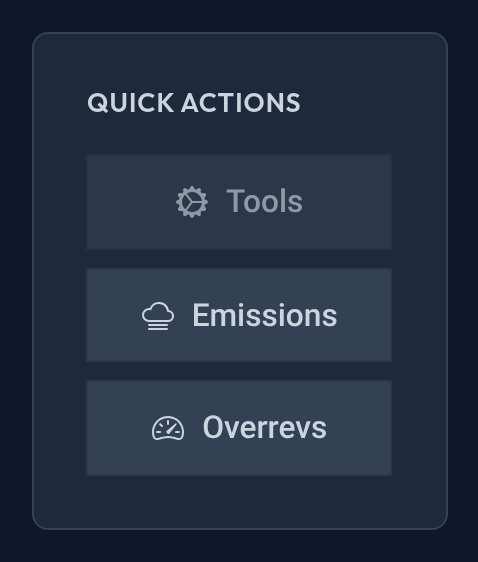
Quick actions has three buttons. Emissions and Overrevs open those reports, and stay greyed out until the device has captured one. Tools opens coding and routines, if they're enabled on your account.
Drive history
Drive history shows the highest readings over a period you pick, from Last drive to All time: coolant temp, oil temp, boost, RPM, oil pressure and intake temp, whichever your car records. Hover over one to see Go to log → and jump to the drive it came from.
- Last drive also shows the date, the time the engine was running, the distance and a short summary of the drive.
- Longer periods show how many drives, the total time and distance, and a chart of drive time per day.
Drive history is on the website only.
Vehicle health
The Vehicle health card holds the health report, detected issues and diagnostic trouble codes. It has its own article: Health and trouble codes. Check engine light on? Start with My check engine light is on.
Activity
Activity has two tabs: Recent logs for the car's latest drives, and Recent comments for tags on its drives and the comments on them. More in Drive logs.
Shared access
Shared access shows who can see the car and what they can do. Owners add people, make share links and transfer the car here. See Sharing a car and I'm selling my car.
Am I ready for a smog test?
Emissions readiness lists the car's emissions monitors and whether each one reads Ready or Not ready, with a count of how many are ready. These are the self-checks an emissions test looks at. A monitor reads Not ready when it hasn't finished its self-test or has found an issue.
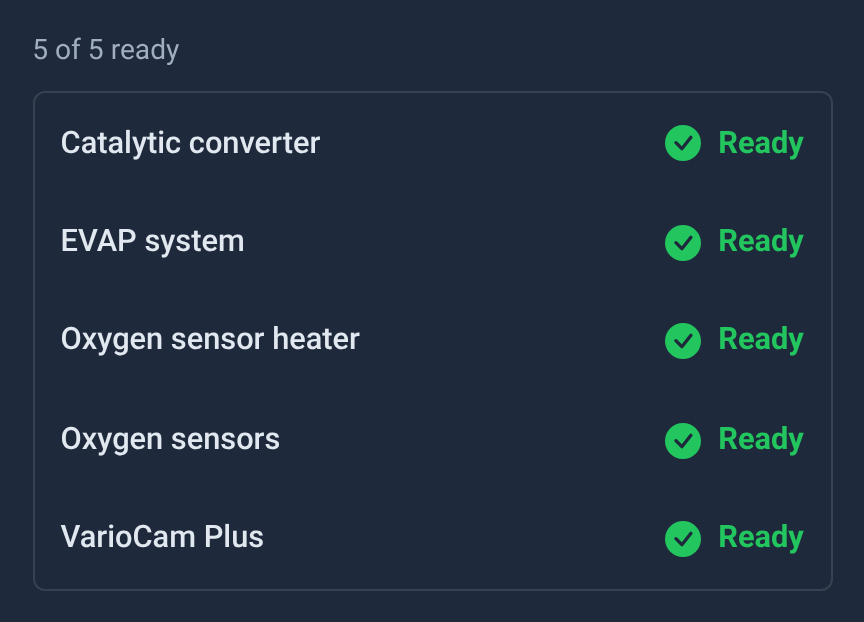
On the web, click Emissions under Quick actions. In the phone app, open Vehicle details; when any monitor isn't ready, the car screen warns Not ready for emissions test. You can also get a notification when the car becomes ready or loses readiness: see what each kind of alert means.
Overrevs
Overrevs shows how many times, and for how long, the engine went past its safe RPM limit. Events are sorted into ranges, and a higher range number means a more severe overrev. The ECU keeps this record itself, so it can include overrevs from before EngineMon was in the car.
ECU statistics
If ECU statistics are enabled on your account, Vehicle details shows the tallies your engine computer keeps on its own over the life of the engine, like how its running time splits across RPM ranges or how knock is spread over the cylinders. They only appear for ECUs whose statistics EngineMon can read.
On the web, they're grouped by topic. Click a row to open its chart, and switch between View as chart and View as table where offered. In the phone app, open Vehicle details and tap ECU statistics.
Most statistics show percentages rather than counts. The ECU halves its counters whenever one fills up, so the raw numbers don't mean much, but the split holds: 30% in a range means 30% of what the ECU recorded landed there. EngineMon reads them while you drive with the device connected, and Last read at the bottom links to that drive.
Tools
If tools are enabled on your account, Tools opens coding (changing settings in the car's modules) and routines (tests the modules can run). Without them, the button stays greyed out. Changes and tests go through the EngineMon device in the car, with the ignition on, and some need the engine off. You need edit access to make changes. In the phone app, tap Coding and routines on the car screen: it lists the car's modules, and one search box finds settings and routines in all of them. Tap a module to see its coding and routines.
Rename a car
On the web, click the pencil next to the car's name, type the new name and save. You can also edit the name right in the table on the Cars page. In the phone app, open the car and choose Rename from its ⋯ menu. Renaming needs edit access (who can do what).
Past cars and removing a car
When a car changes hands without its history, everyone who had access keeps a read-only copy under Past cars. Only EngineMon support can delete a car. To let one go, transfer it or leave it: see Removing a car or device.
In the phone app
Open a car from the Garage. Its screen has:
- The name, the engine and when the car was last driven. Tap the VIN to copy it.
- The ⋯ menu: Rename, Shared access, Transfer, and on Android Add to home screen, which puts a shortcut to the car (or its live data) on your home screen.
- Vehicle details, with the car's information, ECU statistics where available, and the overrev and emissions readiness reports.
- View live data, whenever the car has a device. See Live data.
- The health banner and Detected issues, which lists issues and trouble codes together, with Clear codes at the bottom for editors. See Health and trouble codes.
- Recent logs, and Access requests for owners.
The phone app has no Drive history or Quick actions. Use the website for those.