Let your partner or your mechanic see a car, or work on it with you. This page covers the three roles, adding and removing people, share links, leaving a car, and what happens when your EngineMon ends up in someone else's car.
Who can do what
Everyone on a car has one of three roles. Each one can do everything the role above it in this table can, plus more.
| Role | What they can do |
|---|---|
| Viewer | See the car, its drives, notifications and analytics, and watch it live. |
| Editor | Rename the car, tag and comment on drives, reimport drives, dismiss notifications, clear codes, use the tools and upload logs. Their own EngineMon logs its drives to the car. |
| Owner | Add and remove people, manage the share link, answer access requests and claims, and transfer the car. |
Picking a role for a mechanic? They need Editor to clear codes or use the tools. Anyone whose own EngineMon will be plugged into the car needs Editor too, or the drives it records there stay hidden.
Where to find it
On the web, open the car and scroll to the Shared access card. In the phone app, open the car, tap ⋯ and choose Shared access.
Only owners see who has access. Everyone else sees their own role ("You can view this car.") and "Only owners can see who else has access."
Add someone
- On the Shared access card, click Share.
- Enter their username or the email they sign in with.
- Pick Viewer, Editor or Owner. It starts on Viewer.
- Click Share.
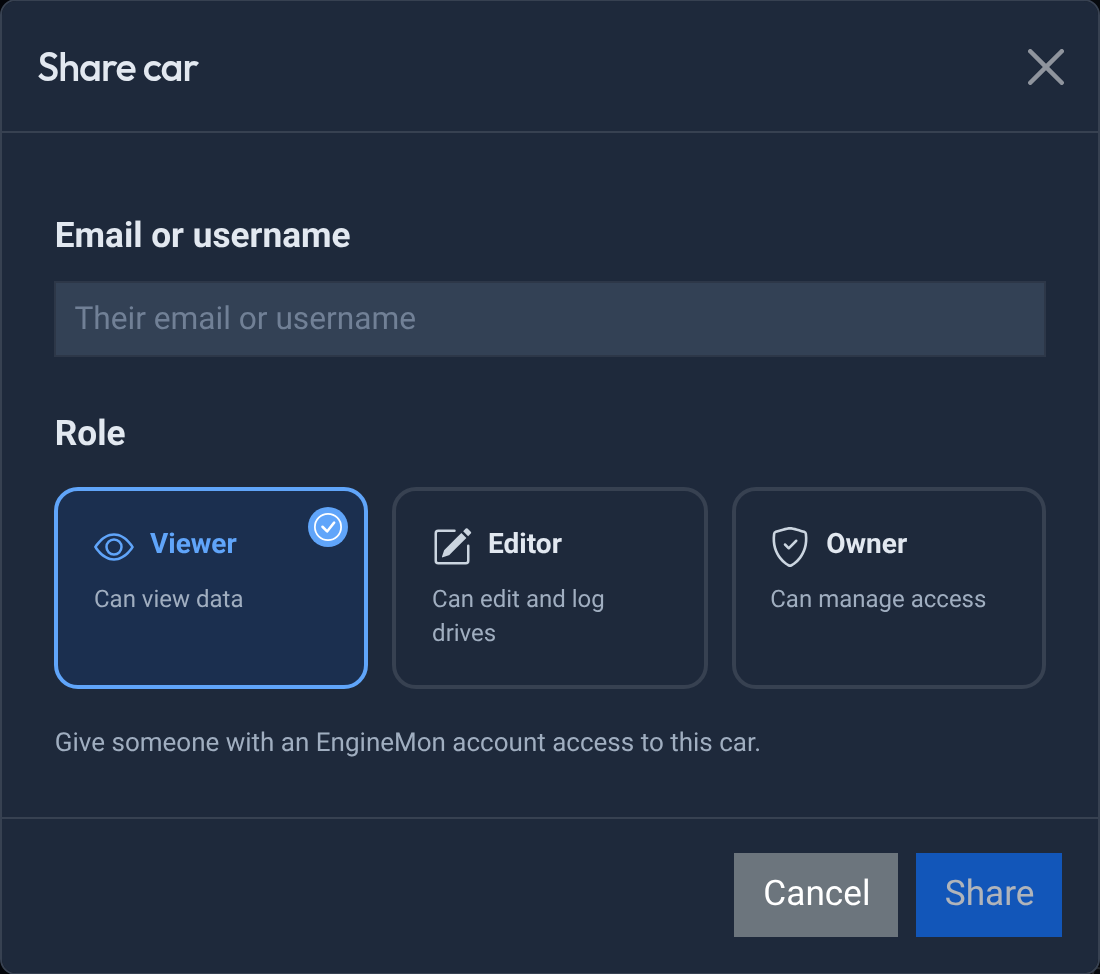
They need an EngineMon account already. Their access starts right away, and they get a notification that you shared the car with them. If you see "No user named..." or "No account uses...", check the spelling or ask them to sign up first.
In the app, tap Share in Shared access. The app checks the username as you type and shows a check mark once it finds the account.
Change a role or remove someone
Open the ⋯ menu on the person's card and choose Change to viewer, Change to editor, Change to owner or Remove access. In the app, open the menu on their row in Shared access.
- Removing asks you to confirm, and the person gets a notification that you removed them. On the web, the toast that follows has an Undo button that adds them back with the same role. The app has no undo, so share the car with them again.
- Making someone an editor or owner also approves any access request they have on the car, so drives their device already logged there show up.
- Lowering an editor to viewer, or removing them, cancels anything they sent to the car through the tools or Clear codes that hasn't run yet.
A car always keeps at least one owner, so you can't remove or demote its last owner. To hand the car over, transfer it.
Send a share link
A share link lets anyone view the car without you typing in their name. Only owners can make one.
On the web, find Share link on the Shared access card and click Create link, then Copy link and send it however you like. In the app, tap Share link to open your phone's share sheet.
Whoever opens it signs in or signs up, then becomes a viewer. People already on the car keep their role.
- New link replaces the link. The old one stops working.
- Revoke turns the link off.
People who already joined keep their access either way. A link also stops working when the car changes hands.
Got a link that says Couldn't open this link? It was replaced, revoked or the car was transferred. Ask the owner for a new one.
Leave a car
- Viewers and editors: click Leave car on the Shared access card.
- Owners: open the ⋯ menu on your own card and choose Leave car. In the app, it's in the menu on your own row.
The car disappears from your list, and an owner can add you back later. If you're the last owner, make someone else an owner or transfer the car first.
Leaving a past car (one that changed hands) is final. Nobody can add you back, and you lose its history.
When your device is in someone else's car
Your EngineMon only logs drives to cars where you're an editor or owner. Plug it into a car someone else owns and the drives it records there stay hidden from everyone, you included. The car's owners get an access request.
If you're asking for access
Your request shows under Pending access on your Cars page, below your cars, and in the app's Garage.
- Pending: the owners have been notified. Nothing to do but wait.
- Denied: an owner said no, and the drives stay hidden. If your device logs a drive in that car 30 days or more after the denial, the request comes back and the owners are asked again.
- Claim pending: you've claimed the car, and its owners have 7 days to answer.
Once an owner approves, you become an editor and the hidden drives show up on the car. If you bought the car and it's still on the seller's account, claim it with I own this car instead.
If someone asks for access to your car
An Access requests card appears on the car page (web and app) when someone's waiting. It shows their username and which device was plugged in.
- Approve makes them an editor right away, and the drives their device logged in the car show up.
- Deny asks you to confirm first. Their drives stay hidden, and they're told you declined.
You can also approve someone by making them an editor or owner on Shared access.
"Device has no access"
Clear codes and the tools work through the EngineMon plugged into the car, whoever owns it. That only works while the device's owner is an editor or owner of the car.
If they aren't, you'll see Device has no access. To fix it, a car owner makes the device's owner an editor, or approves their access request.
Devices aren't shared
A device has one owner, and only that person can open its page or change its settings. To let someone see what it records, share the car it's in. To give the device to someone else, transfer it.
Sharing notifications (someone added you, approved or declined your request) are covered in What each kind of alert means.