EngineMon tells you when something happens to your car, your device or your account. This page covers where alerts show up, what each kind means, and how to choose what reaches your phone and your email.
Find your alerts
On the web, the bell in the top bar is your inbox. A red count shows how many alerts you haven't read, and clicking the bell lists the latest 20. Click View all alerts for the full inbox, where you can switch between All and Unread and clear everything with Mark all read. Each unread alert also has its own Mark as read check mark.
In the phone app, tap the bell at the top of the screen to open Alerts. Unread alerts have a dot. Mark all read asks you to confirm first, and the gear opens your notification settings.
The inbox shows your newest 100 alerts, and you can't delete them. Some mark themselves read once they're dealt with: a firmware update alert, for example, once the device installs that version.
Open an alert
Click or tap an alert to open what it's about. That's the car's page for most alerts, the drive (opened at the tag) for a tag, the device's page for a firmware update, and the chat for an EngineMon AI reply. Opening an alert marks it read.
Some alerts have more to tell, like a battery reading and what to do about it. Those show their details first, with Open page to go on to the car or device.
How urgent is it?
Each alert has a priority. On the web it's the colored bar at the left of the row: red for high, blue for normal, grey for low. The phone labels each alert High, Normal or Low.
Almost everything is normal. Only a critically low car battery and alert rules you've set to high come in as high, and only rules you've set to low come in as low. A fault code alert doesn't carry the code's severity, so open the car to see how serious the code is.
What each kind of alert means
Every alert belongs to a category. Alerts about a shared car, like a new fault code or a low battery, go to everyone who has access to it, and each person's own settings decide how it reaches them.
- Fault codes: a trouble code appeared on your car for the first time, or came back after it was cleared, dismissed or gone from a later scan. You hear about a code at most once per drive, and codes you chose to ignore stay quiet. See Diagnostic codes.
- Detected issues: EngineMon found a problem in a drive, like a misfire, boost leak, overheating or low voltage. Only issues of medium severity or higher send an alert. The rest are on the car's page.
- Emissions readiness: the car's emissions monitors are all ready for an inspection, or they reset. A reset alert lists the incomplete monitors, which complete again with normal driving. The car's first readiness report doesn't send one.
- Car battery: the battery your device is plugged into is running low. See Car battery alerts.
- EngineMon AI replies: EngineMon AI answered a question you asked in the phone app, needs your confirmation, or couldn't finish, and the chat isn't on your screen. These are push only, so the reply waits in the chat, not in your inbox.
- Tags on your logs: someone else tagged one of your drives. The alert shows their comment. Tags added with the device's button don't send one.
- Cars, devices and sharing: a car was added or shared with you, or a request, claim or transfer you're part of started or ended. See Sharing a car and Buying and selling.
- Ownership requests: someone asked for access to your car, claimed your car or device, or offered you one. You also get one when a car or device leaves you or you lose access to one.
- Devices and firmware: a firmware update is ready for a device you own. See Update the firmware.
- Orders: if you've ordered from us, part or all of the order shipped, or it was cancelled or refunded. See If you've ordered from us.
- Your alert rules: a rule you set up matched. See Alert rules.
Choose what reaches your phone and email
Open notification settings: on the web it's Settings, then Notifications; in the phone app it's Settings, then Notifications, or the gear on the Alerts screen. Your choices belong to your account, so the web and all your phones share them. On the web, click Save when you're done. The phone saves each change as you make it.
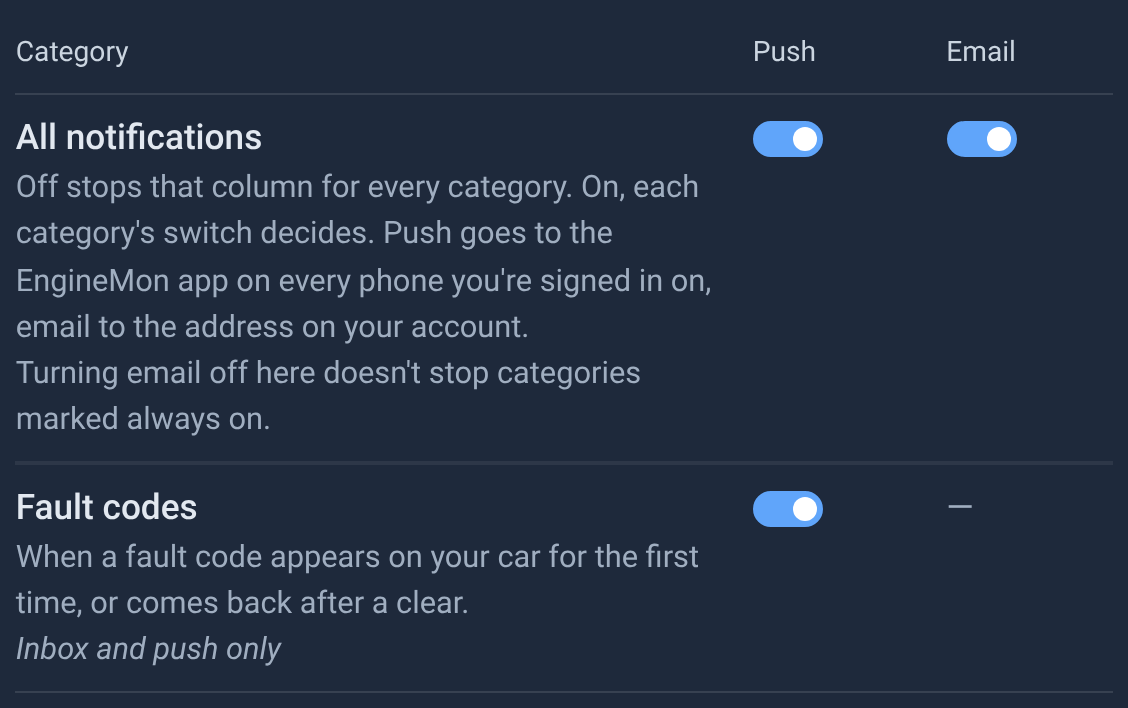
Every category lands in your inbox (except EngineMon AI replies) and has a Push switch, which sends it to the EngineMon app on every phone you're signed in on. Only Cars, devices and sharing, Ownership requests, Orders and Your alert rules can also email you. The others are marked Inbox and push only.
Out of the box, push is on for every category except Your alert rules, which you turn on yourself. Email starts on for ownership requests, orders and alert rules, and off for cars, devices and sharing.
Ownership requests are always emailed, and you can't turn that off. Nobody can claim your car or device, or take away your access, without you hearing about it.
The first row, All notifications, has a switch in each column, on the web and on the phone. Turn its Push switch off to stop every push, ownership requests included, or its Email switch off to stop every email except ownership requests. While one is off, the category switches under it are greyed out and show what's still sent. Your choices come back when you turn it on again.
Quiet hours
Turn on Quiet hours to stop pushes overnight. When you first turn it on, it's set to 10 PM to 7 AM. Pick any times you like, including a window that runs past midnight. The times follow your account's time zone: Timezone on the web, or Time zone on the phone, where Use this phone's appears if the phone is in a different zone.
During quiet hours:
- Alerts still land in your inbox, but their pushes aren't sent.
- Ownership requests still push.
- Emails from your alert rules aren't sent, and they aren't sent later either. Other emails go out as usual.
Max per hour (web only)
Max per hour caps how many emails all your alert rules together send in an hour: Relaxed (3) or Normal (10, the default). Past the cap, rule alerts still reach your inbox and your phone, only without the email. If EngineMon AI set a different number for you, it shows as Custom. The phone app doesn't have this setting.
Unsubscribe from emails
Every notification email has a Manage notification preferences link. Emails about cars, devices and sharing, and about orders, also have an unsubscribe link that turns off email for that category. Emails from your alert rules have two:
- Unsubscribe from emails from your alert rules turns off email for all your rules and leaves your other email alone. Your mail app's own unsubscribe button does the same.
- Only stop this alert turns off email for that one rule.
Ownership request emails have no unsubscribe link.
Notifications on your phone
Let this phone show pushes
When notifications aren't allowed, the phone app's Notifications screen shows a This phone row under Push:
- Turn on: the phone hasn't asked you yet. Tap it and allow notifications.
- Open settings: notifications for EngineMon are blocked in the phone's settings. Turn them back on there.
- No button: this phone can't receive pushes at all. Your inbox and email still work as usual.
No row means pushes are allowed. If you're signed in to more than one account on the phone, each account's pushes come through, and tapping one switches to that account.
On this phone (Android)
On Android, the On this phone section lists four notifications the phone shows by itself. Each has a System settings button, where you can mute it or change its sound:
- Background activity: shown while EngineMon syncs your devices in the background, which Android requires. When a device connected to the phone over Bluetooth goes to sleep, it also shows a silent "Asleep" notice with the reason, like "Car battery low" or "Engine off", for about 10 minutes. Muting it hides these notifications. Syncing keeps running. To stop syncing in the background instead, tap App settings on the Background sync row at the end of the section.
- Engine start: an Engine started notification when a car starts with the app in the background, to open its live data. It needs Auto-open on engine start in Settings, then App (see Phone settings for live data). The app tries to open live data by itself first and only posts this when it can't.
- Firmware updates: progress of a firmware update this phone sends to a device, and when it finishes or fails.
- Location logging: asks whether to log your location for a drive, and shows while it logs. See Location logging.
Android's own notification settings for EngineMon also list each category, so you can give one its own sound there. On iPhone, the engine start notification comes with View live data and Dismiss buttons.
Car battery alerts
Your device keeps an eye on the voltage at the OBD port, which is your car's battery. A short dip while the engine cranks doesn't count.
- Battery low: the voltage stayed below 11.5 V for 30 seconds. The device saves power by going to sleep as soon as it can and waking half as often, so live data and syncing may pause until the battery recovers.
- Battery critically low: the voltage fell below 11.0 V and the car may not start. The device stops waking on its own and sleeps until the car is used. This one comes in as high priority.
Open the alert to see the voltage, when it was measured, and what to do: drive the car for a while or connect a battery charger. If it keeps happening, have the battery tested. It may be worn out, or something may be draining it while the car is parked.
A few things to know:
- You hear about each level once. A car left parked with a weak battery reminds you at most once a day.
- The alert arrives when the device next syncs, so a drop overnight may only show up the next time the car is used. A reading that reaches EngineMon more than 12 hours after it was taken doesn't send an alert at all.
- There's no alert when the battery recovers.
- Battery alerts go to everyone who can see the car, or to the device's owner if it isn't in a car yet.
For what the device does while the battery is low, see Low car battery.
Alert rules
Want to hear about something specific? Ask EngineMon AI to set up an alert rule, for example:
- "Alert me when my 911's coolant goes above 230 °F."
- "Tell me about any new code starting with P030 on my Fit."
- "Email me if EngineMon detects a boost leak."
EngineMon AI shows you the rule and saves it only after you tap Approve. Ask it the same way to list your rules, or to change, pause, resume or delete one.
How rules behave:
- A rule belongs to you and one car. You can set rules on any car you can see, shared cars included, and other people on the car don't see them. A rule stops when you lose access to the car.
- A temperature, pressure or other sensor rule looks at each drive's readings as they reach EngineMon, and fires at most once per drive.
- Rule alerts go to your inbox, and by email if you ask for it. They push only once you turn on Push for Your alert rules in notification settings. A rule's priority only changes how the alert looks.
- Cooldown (1 hour unless you ask for another): the same thing happening again within it sends nothing at all.
- Max per day (20 unless you ask for another): past it, the rule stops emailing, but inbox and push carry on.
- Reimporting a drive never sends its alerts again.
Auto-paused rules. A rule that fires 50 times in 24 hours pauses itself, and your inbox gets "Alert rule paused" with its name. The notice mentions the vehicle page, but rules are managed through EngineMon AI, so ask it to resume the rule. Resuming starts the count over. A longer cooldown or a narrower rule keeps it from happening again.
Why didn't I get an alert?
I'm not getting push notifications
Check these in order:
- The phone app's Notifications screen has no This phone row. If it has one, use its button.
- The Push switch on the All notifications row is on.
- The category's Push switch is on. Your alert rules starts off.
- You're not in quiet hours.
- On Android, the category isn't muted in the phone's own notification settings for EngineMon (On this phone).
- You're signed in to that account on the phone. Pushes go to every phone where you're signed in.
EngineMon AI replies push only for questions you asked in the phone app, and not while that chat is on your screen.
An alert never showed up
- Detected issues below medium severity don't send alerts.
- A fault code alerts once per drive, and again only if it comes back after being cleared or dismissed. Codes you ignore never alert.
- The drive may not have reached EngineMon yet. See Why hasn't my drive appeared?
- A battery reading that arrives more than 12 hours late doesn't alert.
- A rule may be paused, auto-paused or inside its cooldown. Ask EngineMon AI to list your rules.
- Tags you add yourself, or with the device's button, don't alert you.