The Vehicle health card on each car's page collects what EngineMon knows about how the car is doing: an overall health report, issues found in your drives, and the trouble codes stored in the car's modules. This page explains what you'll see there and what you can do about it.
My check engine light is on
- Open the car: click it on the Cars page, or tap it in the phone app's Garage.
- In Vehicle health, look for codes marked CEL. Those are the ones turning on a warning light. On the web they're under Diagnostic codes. On the phone, codes and issues share one list, Detected issues.
- Open a code and read What to do. It tells you how serious the code is and what to check next (what the severities mean).
- For the bigger picture, open the health banner at the top of the card (See more on the web). Its Action plan lists what to do, in order.
- Once the fault is fixed, someone with edit access can clear the codes on the website or in the phone app. If the fault is still there, the code and the light come back.
No code marked CEL yet? The device reads the car's fault memory every couple of minutes while the car is on. While it's streaming, a new code shows up on the car about a minute later, so you can often see what turned the light on before you get home. If the device can't send anything right now, the code arrives when the drive syncs (How syncing works).
You can also ask EngineMon AI to explain a code or go through the car's code history with you.
The health report
Once EngineMon has analyzed the car's data, a banner at the top of Vehicle health gives you a one-word status and a headline:
| Status | What it means |
|---|---|
| Healthy | Nothing to report. |
| Monitor | Only minor items, nothing that needs action right away. |
| Attention | At least one medium or high severity problem, or several minor ones with a common cause. |
| Critical | A safety-related problem, or something that could soon affect how the car drives. |
Click See more (or tap the banner on the phone) to open the Vehicle health analysis:
- Findings: each problem, with its own severity from Info to Critical, an explanation, and chips naming the codes, freeze frames, issues or drives it's based on.
- Action plan: numbered steps, each with the reason for it.
- Driving notes: patterns from your recent drives, like driving style or conditions that keep coming up, when there's something worth saying.
The bottom of the report says what it reviewed and when it was made. EngineMon writes a new report each time a drive is imported. A car with no report yet shows no banner.
If the card says No health issues detected, EngineMon hasn't found any issues or codes so far.
Detected issues
Detected issues are problems EngineMon spotted in your drive data itself, like a misfire, a boost leak, overheating or low voltage. Each has a severity. Open one to see an explanation, how many times it was detected across your logs, and a recommendation.
Diagnostic codes
Diagnostic codes are the trouble codes the car's modules store. EngineMon reads them from the engine and, where it can reach them, from other modules too. Each code in the list shows:
- The code and its severity: High, Medium, Low or Info.
- CEL when it's turning on a warning light: the check engine light for engine codes, or that module's own warning light for codes from other modules.
- The module name, for codes that don't come from the engine.
- A title, description and when it was last seen.
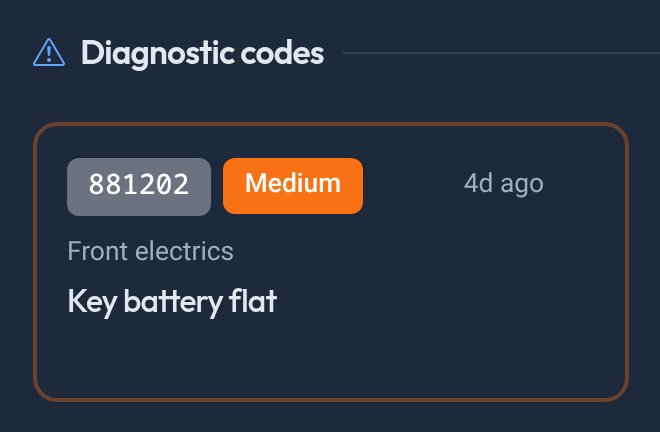
You can search both lists and filter them by severity.
What the severities mean
When you open a code, What to do shows what the health report says about it, Same problem as with other codes that share its cause, and Next steps. When the report doesn't cover the code, you get the advice for its severity instead:
- High: potentially serious. Have the car inspected by a qualified mechanic as soon as possible.
- Medium: a fault worth checking soon, especially if it keeps coming back or the car drives differently.
- Low: keep an eye out for it coming back and deal with it at your next scheduled service.
- Info: reports a state, such as transport or test mode, rather than a fault. It needs no repair on its own.
- Not rated: EngineMon has no rating for this code, so its urgency isn't known. Have it read and checked soon rather than ignoring it. This label only shows in the code's details, and an unrated code doesn't match any severity filter.
What's in a code's details
On the web, the code dialog has the description, What to do, and an Event history of every time the code was read, with any Freeze frame data: the engine readings captured when the fault was stored. Filter the history with its chips, and step to the next or previous code without closing the dialog.
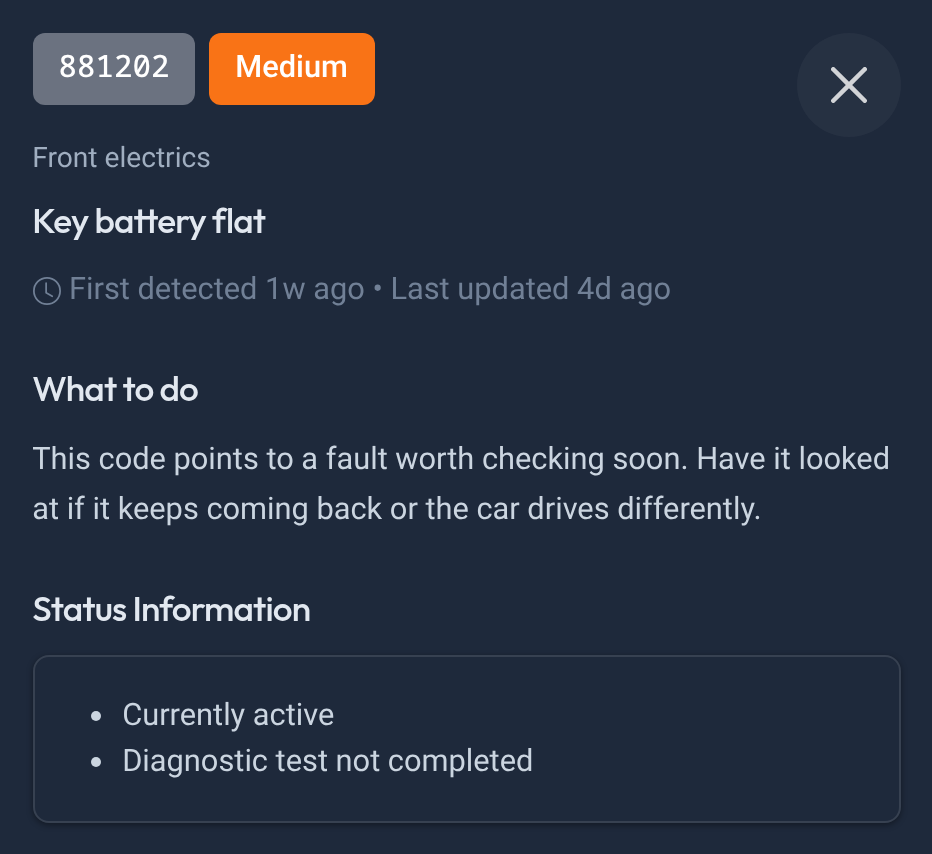
The phone splits the same information into cards. Status shows whether the fault is active Right now, whether it's in ECU memory, whether the warning light is on, and whether the module's self-test has completed. Freeze frame shows the conditions when the fault was stored, and History lists what changed each time it was read. Generic OBD-II codes show a Code type instead: Pending, Confirmed or Permanent.
Stored and resolved codes
Codes that aren't active move to a collapsed list under Diagnostic codes called Stored and resolved codes (on the phone, Dismissed). Each is labeled with the reason:
- Stored: the code is in the module's memory but the fault isn't active right now. Watch for it turning active again.
- Resolved: the module stopped reporting it. EngineMon decides this once a drive has been fully imported, not mid-drive.
- Cleared: someone cleared it from the car.
- Dismissed: someone on the car hid it.
A code that becomes active again moves back to the main list.
Hide an issue or code
Once you've dealt with something, you can move it out of the way. This needs edit access to the car (who can do what), and it changes the list for everyone on the car, not only you.
- Dismiss moves it to the dismissed list. Restore brings it back. Anything you dismiss also comes back by itself if EngineMon sees it again.
- Ignore permanently (phone only) hides it for good, even if the problem comes back. The app asks you to confirm first, and you can't undo it.
Where you can do it depends on the platform:
| Website | Phone app | |
|---|---|---|
| Detected issues | Dismiss and Restore | Dismiss, Restore and Ignore permanently |
| Diagnostic codes | Not available | Dismiss, Restore and Ignore permanently |
On the web, open the issue and click Dismiss or Restore. On the phone, open the issue or code to find the buttons; they're turned off while you're offline. On either one, you can also ask EngineMon AI to dismiss, restore or ignore a code for you.
Clear codes
Clearing codes tells the car's modules to erase their stored faults, which also turns off the warning light. It doesn't fix anything: if the cause is still there, the module sets the code again and it shows up as active on EngineMon.
Clear codes is at the bottom of Diagnostic codes on the website, and of Detected issues in the phone app. You need edit access to the car, and the car needs:
- An EngineMon device that has logged drives in it, whose owner is an editor or owner of the car.
- A full 17-character VIN on record.
- Active codes in at least one module that can be cleared.
The engine can be running or off, but the ignition must be on. A module can still refuse a clear, and the result then says so.
When only one module has active codes, the button clears it straight away. With several, it opens a list where you can Clear all or Clear one module at a time. A module EngineMon can't clear shows why. In the phone app, the button is off while you're offline.
What the button shows
- Queued...: the device isn't connected right now. The clear runs when it next connects, as long as that's within 5 minutes. After that it expires and the button comes back. Use Cancel to stop it.
- Clearing codes...: the device has the clear and is running it.
- Codes cleared: done. The codes move to Stored and resolved codes (Dismissed in the phone app), labeled Cleared.
- Some codes not cleared, Codes not cleared or Clear result unknown: not every module cleared, or EngineMon couldn't tell. Any reason shows below the button: a module refused the clear, didn't answer, or couldn't be cleared. Check the ignition is on and use Retry.
If you can't clear codes
When something stops the clear, the button is greyed out with a lock and the reason underneath. The common ones:
- Car is off. Turn the ignition on first. The device is awake but can't reach the car. Switch the ignition on (the engine can stay off) and try again.
- Device isn't plugged into the car. Plug it into the car's diagnostic port and turn the ignition on.
- The device hasn't identified the car it's plugged into yet. Wait a minute and try again.
- This car's device is plugged into another car. Move the device back to this car.
- No device connected to this car: no device has logged drives in this car, or its device has since logged drives in another car. Plug a device in and drive.
- This car's device belongs to someone who can't log drives to this car...: the device in the car belongs to someone who isn't an editor or owner of this car. A car owner can make them an editor (Device has no access).
- Car must have a valid 17-character VIN to clear codes. EngineMon doesn't have the car's full VIN. Contact support.
- None of the modules with active codes can be cleared. EngineMon can't clear codes from these modules.
- This clear is too large to send at once. Clear fewer modules at a time from the list.
- Couldn't check the device status. Try again in a moment.
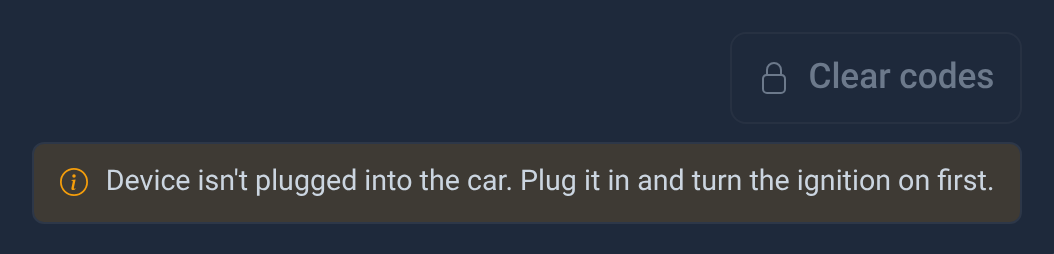
No Clear codes button at all? Check that you have edit access (viewers don't get one) and that there are active codes. A car under Past cars can't be cleared either. You can't clear codes through EngineMon AI.
Related
- Get notified when a code appears or comes back after a clear, or when EngineMon detects an issue: what each kind of alert means.
- Emissions readiness and overrevs.
- Who can dismiss and clear: who can do what.