Your EngineMon records a log every time it wakes up in the car. This page covers finding your logs, reading them, marking moments and getting the data out.
When a drive shows up
A log starts when the device wakes and ends when it goes back to sleep. Usually that's one drive. If the device sleeps partway through, the drive becomes two logs, and a short wake-up while parked gets a log of its own.
A log appears in Logs as soon as its first data uploads, and it's ready to open about a minute after the uploads stop. The device uploads over its own Wi-Fi or through your phone over Bluetooth; How syncing works explains both.
Why is my drive missing?
- The row says Live: the car is still streaming. Click the row to watch it in Live data.
- The row says In progress: uploads paused, often because the car left Wi-Fi. They resume when the device is back in range. Values stay hidden until the log ends or 15 minutes pass with no new data.
- There's no row at all: the device hasn't uploaded it yet. See Why hasn't my drive appeared? Logs where the device didn't detect a car are hidden too.
Your logs list
Logs on the web lists the logs of every car you can see. The phone has no full list: see In the phone app.
By default each row shows Status, Car, Codes (trouble codes still active at the end of the drive), the peak oil temp and RPM, file size, duration, distance and date. You can search, sort, and show or hide columns, such as max coolant, max boost or the device. Duration follows your log trimming setting.
You can't delete a log or move it to another car. Only EngineMon support can.
What each status means
- Ready: imported. Click it to open it, or download it.
- Live: still streaming. Clicking it opens the car's live data.
- In progress: uploads paused and may resume. Duration, distance and values are hidden for now.
- Processing: importing. Give it a minute. If the log already had data, you can open it while it runs.
- Not processed: the data arrived but hasn't been imported. Reimport it.
- Failed: the import failed. If an earlier import worked, you still see that data. Reimport it, and contact support if it keeps failing.
- Pending: EngineMon couldn't tell the log's status. Try reloading the page.
A row with no data can't be opened. Click its status icon to see what's going on, with a Reimport log button if you can use it.
Reimport a log
Reimporting runs the import again. Click the reimport button (↻) on the row, or on the log's analysis page. It's web only.
Who can reimport:
- On a car's log, the car's owners and editors. Uploading a log yourself doesn't change that.
- On a log with no car, whoever uploaded it or owns the device.
- On a car under Past cars, nobody.
Everyone else sees "Someone who can edit its car can reimport it." After you click, Reimport queued means the row shows Processing until it's done. No reimport needed means the log is already importing or is still receiving data, and it will import by itself.
Upload a log from another logger
On the web, click Upload log. Pick a car under Select car (optional) (only cars you can edit are listed), then drag in files or browse. Uploading starts right away, one file after another. Cancel upload stops the files that haven't gone yet.
- Files can be
.csvor.log, and a.logmust contain CSV text. - Each file can be up to 200 MB, with a name up to 255 characters.
- You can upload 200 files an hour. Past that, the dialog waits and shows when it will continue.
With no car chosen, only you can see the log. With a car, everyone on that car can. Location columns in an uploaded file are kept private to you, like the phone's location logging.
Export many logs at once
On the web, check the rows you want, click Export and confirm in Bulk export. You get logs_export.zip, one CSV per log, using your CSV settings.
- Up to 200 logs per export, and 10 exports an hour.
- Logs with no imported data are skipped.
- Bulk export always includes the whole log. Trimming only applies to single downloads.
- Keep the tab open until it finishes. Your browser warns you if you try to leave.
The analysis page
Click a log to open it. It has two tabs, Summary and Charts.
Summary
- Drive summary: a one-line summary of the drive when there is one, then date, drive time (engine running), distance, and the highest coolant temp, oil temp, boost, RPM, oil pressure and intake temp recorded.
- Trouble codes: active codes first, and Show N stored codes for the rest. "Appeared during this drive" marks new ones. "Fault memory wasn't read on this drive" means the device didn't read codes this time. Health and trouble codes explains what they mean.
- Tags, when the log has any. Click one to jump to it in the charts.
- Overrev report, only if the engine overrevved.
- Emissions readiness and ECU (operating hours and identifiers). See Am I ready for a smog test?
Charts
Each chart holds up to 6 sensors: pick them from the dropdowns, or click Add sensor to chart. Add chart adds another chart. All charts share one time window, so they zoom and pan together. Each chart can switch between Line chart and Scatter plot, can be resized, and Remove graph takes it away. Click a sensor for its color, line style, opacity by value and value filter.
Scroll to zoom toward your pointer. Once you've zoomed in, drag to pan, or drag the overview strip across the top. On a touchscreen, drag with one finger and pinch to zoom. Markers like "P0301 appeared" show when a trouble code first showed up.
Compare two moments
Click a point to set cursor A, then Shift+click to set B. Every sensor in that chart shows its value going from A to B, plus the time between them. With only A set, the comparison runs to wherever you're pointing. Clear selection or Esc removes the cursors. On a touchscreen, press and hold to set A.
Keyboard shortcuts
Hover over a chart first: shortcuts act on the chart under your pointer.
| Key | What it does |
|---|---|
| F | Fullscreen the chart. F again exits. |
| S | Add a sensor to the chart (up to 6) |
| T | Tag the cursor point, the A to B range, or the spot you're hovering |
| Esc | Clear the cursors, close the menu, leave fullscreen or tag view |
| ← / → | Pan by 10% of the view (5% with Shift) |
| ↑ / ↓ | Zoom in or out by 30% (5% with Shift) |
The question mark in the top bar (Help & keyboard shortcuts) lists them too.
Plots
Add plot offers Sensor comparison (any two sensors against each other, as dots, a heatmap or a line; it starts with RPM against load) and Histogram (how one sensor's values are spread).
Custom sensors
On the web, open a sensor dropdown and choose Create custom formula. Give it a label, a short label for the legend (up to 20 characters) and a formula built from other sensors. Formulas read sensors in their stored units (kPa, °C, m/s, percentages as 0 to 1), and the result is shown in your units. Custom sensors are saved to your account, so they're on every log. Edit or delete one from its settings.
Saved views
A view saves your chart setup: sensors and plots. Click Saved views in the page header, then Save current view and give it a name (up to 120 characters). Click a view to apply it to any log; sensors that log doesn't have are skipped. Rename or delete views with the pencil and trash icons.
Views sync between the web and the phone app. They work on the main charts only, so leave tag view to save or apply one.
Tip: Even without saving a view, your chart setup carries over to the next log you open, and each log remembers where you were zoomed in that browser.
Tags
A tag marks a moment or a stretch of a drive so you can find it, talk about it or share it. There are three kinds:
- Tags people add, each starting with a comment.
- Marker tags, from a quick press of the device's button while you drive.
- Auto-detected tags, where EngineMon spotted a possible issue.
Add a tag
Press T, right-click the chart and choose Add tag, or set cursors and click Tag point or Tag selection. Write a comment (required, up to 1,000 characters) and press Enter.
On a car's log, the car's owners and editors can tag and comment. On a log with no car, its uploader or the device owner can. Viewers, and everyone on a car under Past cars, can read tags but not add or change them. Who can do what explains roles.
When someone tags a drive, the device owner and the car's owners get a "tagged your drive" notification (what each kind of alert means).
Reply, share or remove
Open a tag to see its comments and reply. Jump takes the charts to it, and Details opens it in tag view. The ⋮ menu has:
- Copy share link: copies a link that opens the log right at that tag. Anyone who can see the log can copy it.
- Report false positive: on auto-detected tags, for editors. The tag stays, faded and marked as a false positive. Change your mind with Remove false-positive report.
- Delete tag: removes a tag people added, with its comments. It can't be undone. Markers and auto-detected tags can't be deleted.
You can edit or delete only your own comments. The last comment on a tag can't be deleted: delete the tag instead.
CSV and display settings
Every ready log has a CSV button on its row and on its analysis page (web only). The file uses your CSV settings and your log trimming.
To change the CSV format, open a log, click the gear (Settings) on the analysis page, then CSV, which takes you to CSV export:
| Setting | Choices (default first) |
|---|---|
| Column headers | Short label, Internal name, Full label |
| Include units in headers | On or off |
| Values | My unit preferences, Standard (metric) |
| Time column | Relative to log start (s), Relative to engine start (s), Absolute datetime (UTC), Local datetime (your browser's time zone) |
| Filename | Log ID, Date & time |
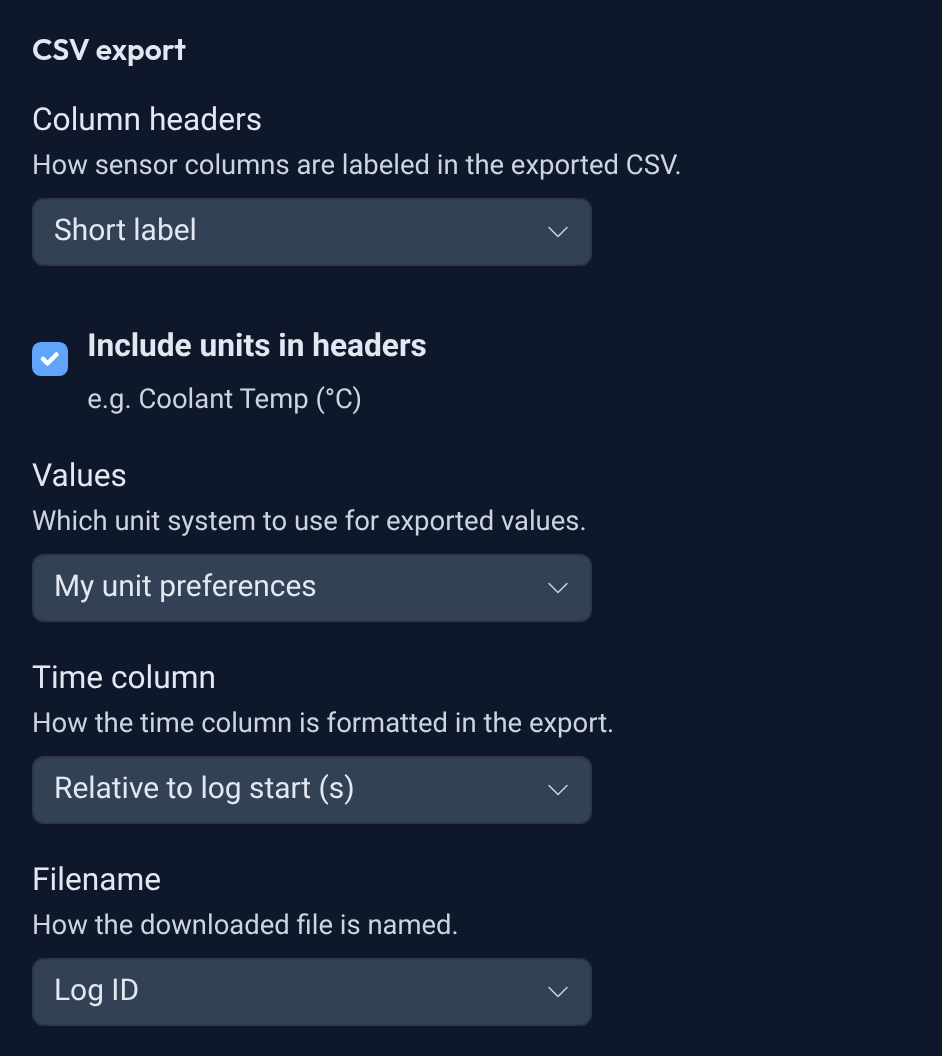
The same panel changes your Units for the whole account, and Log display. Click Save when you're done.
Log display holds Log edge trimming, which you can also set in Settings > Display (Log trimming). Trim to sensor data (the default) hides device data at the start and end of each log, Trim to engine activity hides everything before engine start and after engine stop, and Show all data shows the whole thing. A buffer of up to 60 seconds keeps a little extra before and after. Trimming applies to the web's charts, the Duration column and single CSV downloads.
In the phone app
The app has no full logs list, upload, export, CSV download or reimport. Use the web for those.
Find a drive: open the car and scroll to Recent logs, five per page with Previous and Next. Each row shows the date, duration, distance and the drive summary. A badge shows Live, In progress, Processing, Failed or Not processed; a ready log has no badge. Tap a Live row for live data, or any other row for Log Details.
Log Details shows the drive summary, the Timeline card (tap Analyze for charts), overrevs, emissions, ECU, trouble codes and Tags. Editors can tap Add tag and enter a start time, an optional end and a comment. Press and hold a tag to open the charts at that stretch.
The analysis screen shows lanes of up to 3 sensors each. Tap a lane's header to choose sensors, and + to add a lane. Drag to pan, and pinch or double-tap to zoom. Press and hold for a crosshair you can slide along (you feel a tick when it crosses a tag), then tap the A and B chips to set cursors there, Tag or Tag range to tag it (editors), and Clear to start over. The ⋯ menu has Saved views, Add XY plot, Add histogram and Ask EngineMon AI. Turn the phone sideways for a bigger chart.
Tags: a tag's ⋮ menu has Share link, Report false positive and Delete tag, and each of your comments has Edit and Delete. Tag links you're sent open straight in the app.
The phone has no line or scatter switch, custom formulas or keyboard shortcuts, and Log edge trimming only applies on the web.
Want a quick answer instead of digging through charts? Ask EngineMon AI something like "what was my hottest oil temp on this drive?"